A LITTLE HELP. MORE SAVINGS.
Get to know PetrolPrices.
Simple steps, real screenshots. Pick what you’d like to do and we’ll walk you through it.
Screenshots captured 6 November 2026. Prices are examples and will change.
All the steps
Find cheaper fuel
Search, filter and compare nearby stations.
How do I find cheaper fuel?
Enter your location
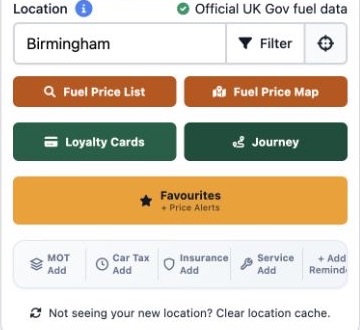
Type a postcode, town or city in Location. Birmingham is our example. Then choose Fuel Price List.
You can also use the crosshair to request your current location.
Choose your fuel
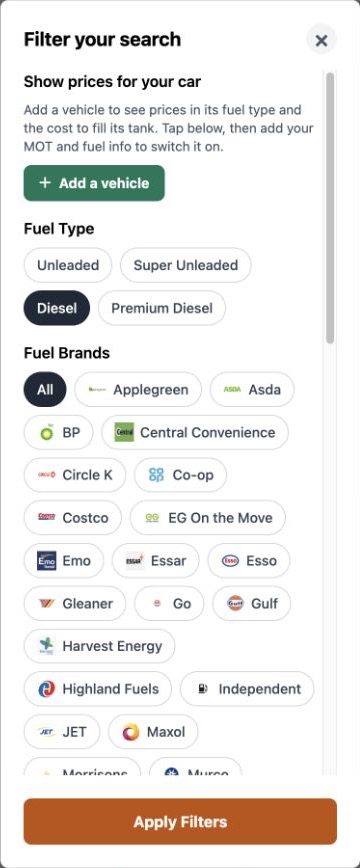
Tap Filter, choose your fuel type and scroll for distance, brands and amenities. Tap Apply Filters when ready.
Put the cheapest first
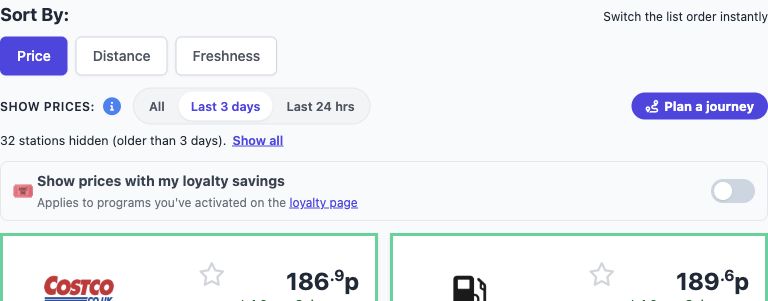
In the results, tap Price. Use Distance to see nearby stations first, or Freshness to prioritise recently reported prices.
The lowest price is only useful if it is still current.
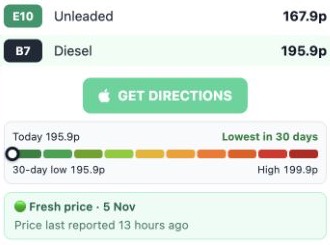
Check when prices were reported
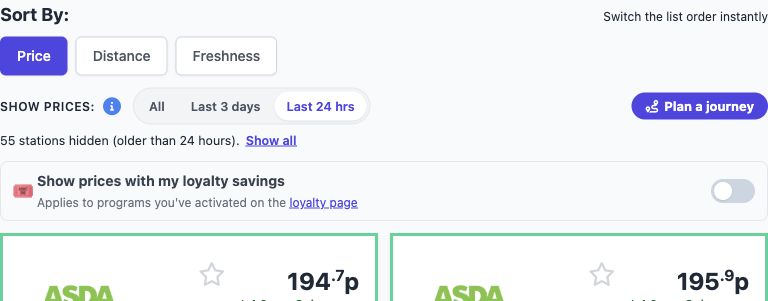
Choose Last 24 hrs or Last 3 days to hide older reports. Read the freshness badge before setting off.
Screenshots are examples, not live prices.
Get directions
Check the station, fuel type and reported price, then tap Get Directions to open your maps app.
The price at the pump is the one you pay.
Explore the fuel map
See where stations are before you drive.
How do I explore the fuel map?
Start with a location
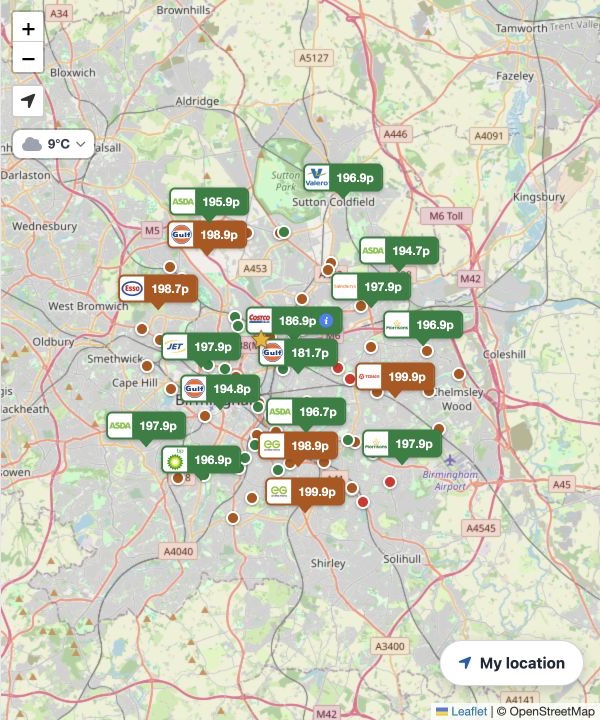
Enter a postcode, town or city on the home page, then choose Fuel Price Map.
Explore nearby stations
Use the + and − controls to zoom. The map shows station dots and price labels around your search area.
Screenshots show an example Birmingham search.
Compare with the list
Use the accompanying station list to compare prices, distance and freshness. On a smaller screen, the controls may appear in a panel.
Check the price age before choosing where to stop.
Favourites & price alerts
Keep your regular stations close to hand.
How do I use favourites & price alerts?
Save a station
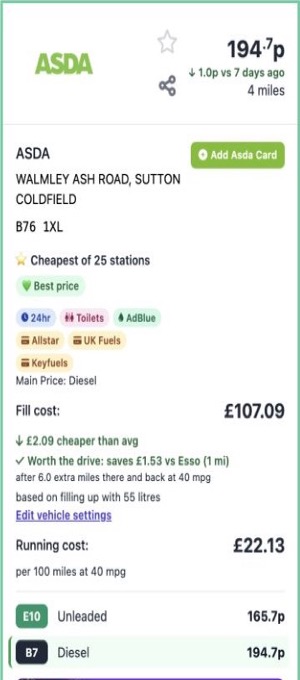
Find a station in your search results and tap its outlined star to add it to your favourites.
Saved choices belong to this browser and device.
Open your favourites
Return to the home page and tap Favourites + Price Alerts to see the stations you have saved.
Find notification settings
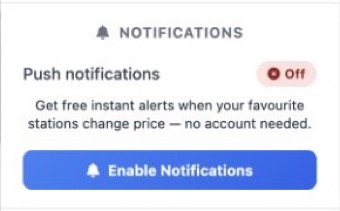
On the Favourites page, open the Settings gear and scroll to Notifications.
Choose whether to receive alerts
Tap Enable Notifications, then allow notifications if your browser asks. You can leave alerts off and still use favourites.
Availability depends on your browser and device. On iPhone, try adding the site to your Home Screen first.
Plan a journey
Find fuel along the way, with optional stops.
How do I plan a journey?
Enter your start and destination
Open Journey from the home page. Fill in Start Location and Destination. Here we use Birmingham to Manchester.
Use towns or postcodes for a more specific route.
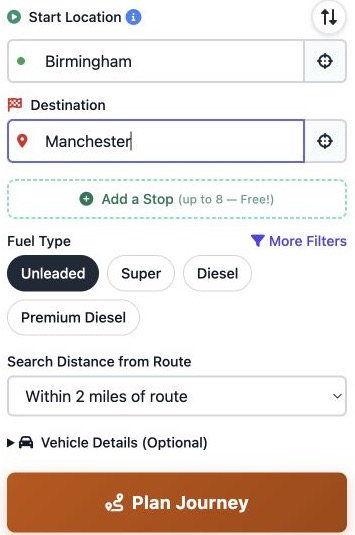
Choose fuel and route distance
Select your fuel type and how far from the route to search. Use Add a Stop if your journey has another destination along the way.
A wider search can include stations that require a longer detour.
Plan your journey
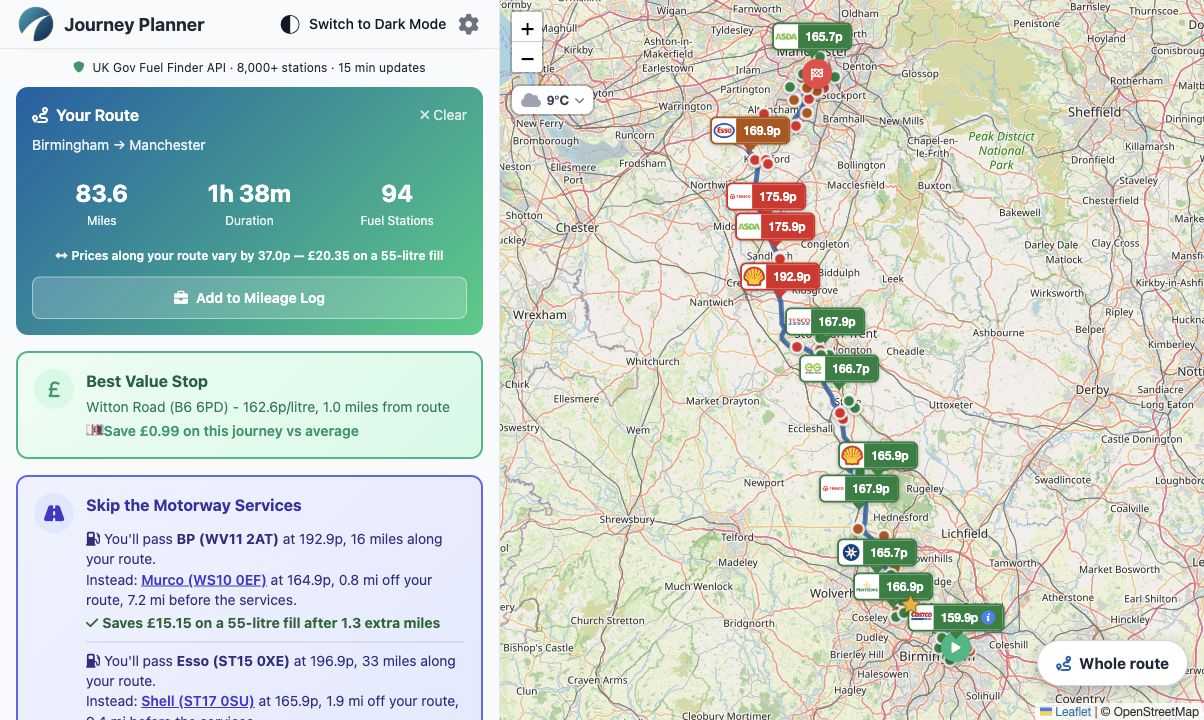
Tap Plan Journey and wait for the route and nearby fuel stations to load.
Vehicle Details is optional and helps with fuel estimates.
Review the route and fuel stops
Check the route, distance and duration. Review the suggested stops and the station list before choosing where to refuel.
Check price freshness and any membership requirements. Savings are estimates.
Add your car & reminders
Set fuel details and keep due dates handy.
How do I add my car & reminders?
Open vehicle setup
From the home page, tap Filter, then + Add a vehicle. You can also start from a reminder such as MOT.
Open your fuel details
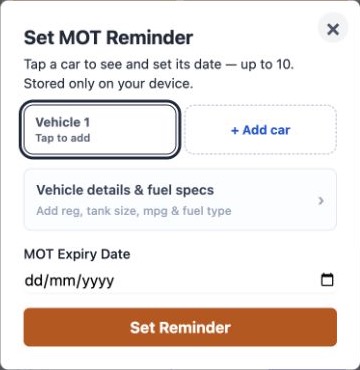
In the reminder window, tap Vehicle details & fuel specs.
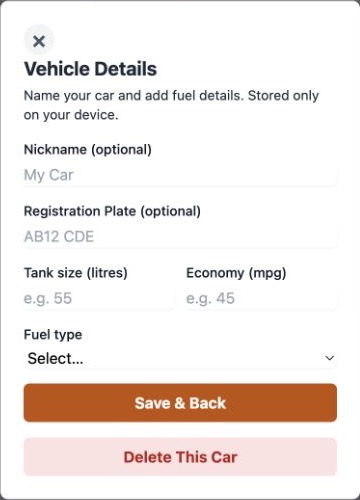
Enter your car’s details
Add a nickname if helpful, tank size, economy in mpg and fuel type. Tap Save & Back. Registration is optional.
Use your own vehicle figures for more useful estimates.
Set a reminder date
Back in the reminder window, choose the expiry date and tap Set Reminder. Use the home-page shortcuts for other due dates.
Your saved car details and dates stay on your device.
Use your loyalty cards
Keep a barcode handy and compare savings.
How do I use my loyalty cards?
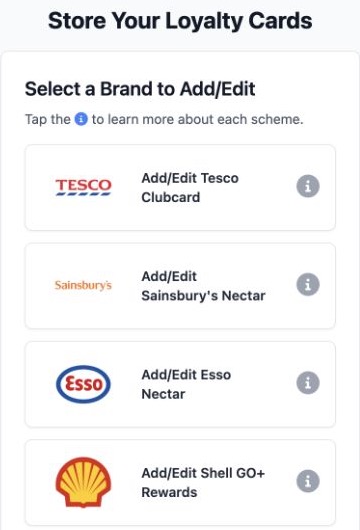
Choose your card’s brand
Open Loyalty Cards from the home page. Tap Add/Edit beside the card you want to keep handy.
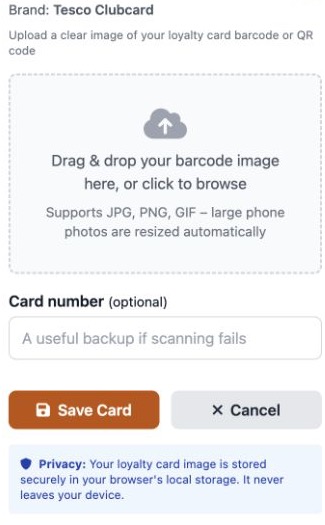
Add a clear barcode image
Choose an image of your barcode or QR code. You can add the card number as a backup, then tap Save Card.
Keep the barcode sharp and free from glare. Card images stay on your device.
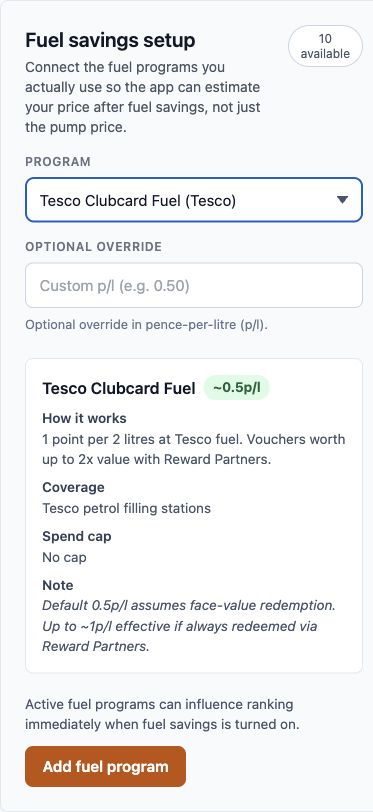
Set up estimated fuel savings
Scroll to Fuel savings setup. Choose a program you use, read its assumptions and tap Add fuel program.
Storing a card image and adding a fuel program are separate actions.
Apply savings to your comparison
Back in the search results, switch on Show prices with my loyalty savings.
Rewards may be earned as points or vouchers rather than a discount at the pump.
Add to your home screen
Open PetrolPrices with a single tap.
How do I add PetrolPrices to my home screen?
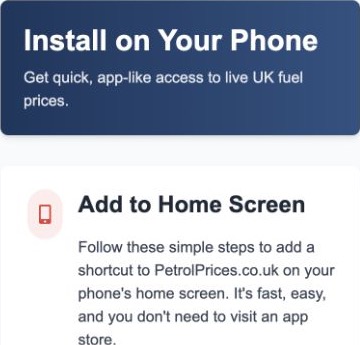
Open the installation guide
Choose Add to Home Screen on PetrolPrices to see instructions for your phone.
These are screenshots of the site’s instructions; phone menus vary by browser and version.
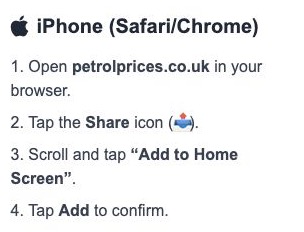
On iPhone
Open PetrolPrices in Safari, tap Share, then choose Add to Home Screen. Confirm with Add.
If the option is hidden, scroll through the Share menu.
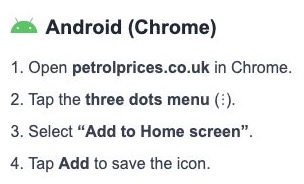
On Android
Open PetrolPrices in Chrome, tap the three-dot menu and choose Add to Home screen. Follow the confirmation shown on your phone.
The menu may say Install app on some devices.


Still need a hand?
Find answers to common questions or get in touch.